One box is a lie the architecture tells you
On a single box, Pterodactyl looks like one app. You open the Panel, click a server, the console streams, the file manager works, and nothing hints that two programs are talking to each other. Then you add node number two, the console goes gray, and your browser’s dev tools show a wall of mixed-content errors.
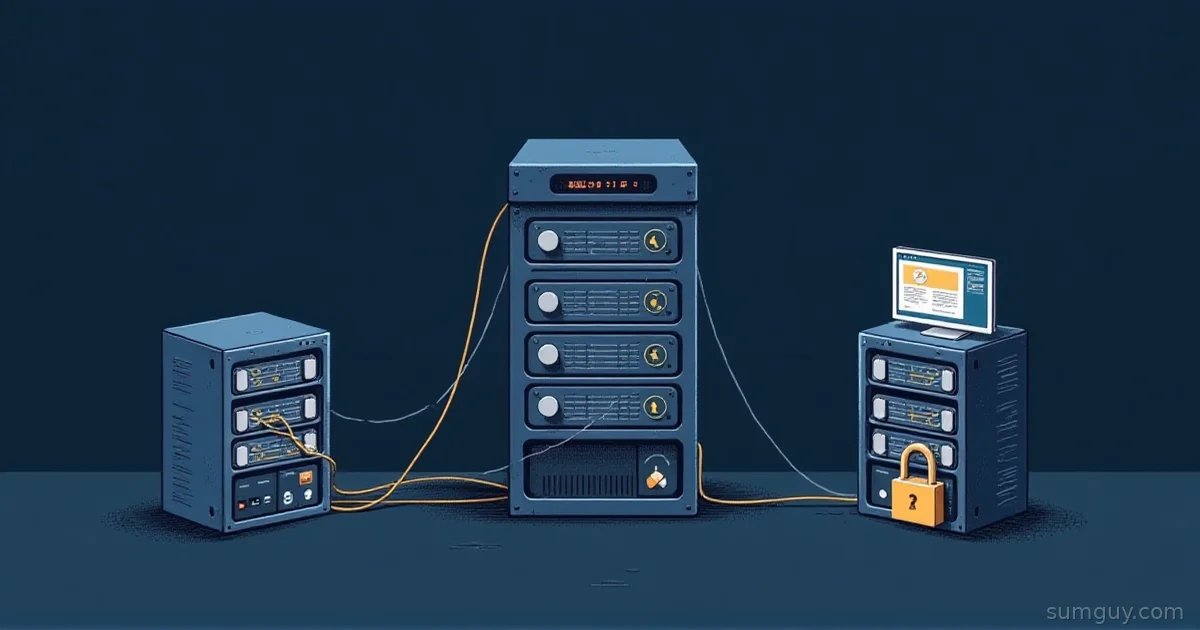
The cause is a shortcut in the design. The Panel is the brain and Wings is the muscle, but your browser does not always go through the Panel to reach the muscle. For the console websocket, file uploads, file downloads, and backup downloads, your browser connects directly to the Wings node. The Panel builds the websocket address from the node’s scheme, FQDN, and daemon port, and hands it to your browser along with a token. So every node needs its own FQDN that your Panel users’ browsers can reach, and if the Panel runs on HTTPS, every node needs its own valid TLS certificate. Skip that and the browser refuses to mix a secure page with an insecure socket.
Full example: Clone the working files at github.com/KingPin/sumguy-examples/tree/main/gaming/pterodactyl-wings-multi-node.
This post assumes a working Panel and one node. If you need the install walkthrough or want to compare Pterodactyl with Pelican and Crafty first, read /pterodactyl-vs-pelican-vs-crafty/. Versions used here: Panel v1.15.2 and Wings v1.13.4, the latest releases as of late October 2026. The Pelican fork (Panel v1.0.0-rc.2, Wings v1.0.0-rc.1) is still release-candidate software, so everything below targets upstream Pterodactyl.
Who talks to whom
Draw the arrows before you rack anything. Four connections matter:
- Panel to Wings. The Panel calls each node at
scheme://fqdn:daemonListen(for examplehttps://node2.example.com:8080) with the node’s API token. This is server to server. - Wings to Panel. Each node calls back to the URL in its
remote:key to fetch server configs and report status. - Browser to Wings. The console websocket, file uploads and downloads, and backup downloads. This is the one that surprises people. (Browsing, editing, and renaming files goes Panel to Wings, server to server.)
- Wings to Wings. Server transfers. More on that near the end.
If any arrow crosses a firewall or a private network, that is where your 2 AM debugging session will happen.
Locations, nodes, and allocations
A location in the Panel is a category label for nodes. Docs say it serves no other purpose, so use it for something humans read, like eu-west or garage-rack.
A node is one Wings install. In the node form you set the FQDN, whether to communicate over SSL, whether it is behind a proxy, the server file directory (default /var/lib/pterodactyl/volumes), total memory and disk, overallocation percentages, the daemon port (default 8080), and the SFTP port (default 2022).
An allocation is an IP and port pair that you can hand to a server, and it belongs to one node. Each node gets its own list. On node 2 you add the node’s internal IP (the docs say hostname -I | awk '{print $1}' finds it, and that you should never use 127.0.0.1) and a port range. Allocations also take an optional IP alias that the Panel shows in place of the IP. Behind NAT you allocate the internal IP (the docs say to use the internal IP there) and can set the alias to the public one.
# on the new node: find the IP to allocatehostname -I | awk '{print $1}'Give each node a game port range that will not collide with its own services. Node 1 can hand out 25565 to 25665 and node 2 can hand out the same range, because allocations are per node. Players only care about the IP and port, so the ranges can look identical.
What the Panel writes and what stays local
Generate node 2’s config in the Panel (Nodes, your node, Configuration tab) or use the auto-deploy command. The Panel’s getConfiguration() emits a small file: debug, uuid, token_id, token, api (host, port, ssl paths, upload_limit), system.data, system.sftp.bind_port, allowed_mounts, and remote. That is all the Panel knows about.
Everything else in config.yml is local to the node. The Docker network, DNS, PID limits, the backup directory, SFTP bind address, and throttles are yours to set, node by node. The Panel can push a short list of values to a running node: debug, uuid, token, API host and port, SSL on or off, upload limit, and SFTP port. It sends certificate paths too, but Wings keeps its local paths. If you ever want Wings to ignore those pushes, there is an ignore_panel_config_updates key.
The sample config in the example kit marks each key. The core of it looks like this:
uuid: 00000000-0000-0000-0000-000000000000 # placeholdertoken_id: REPLACE_WITH_TOKEN_IDtoken: REPLACE_WITH_TOKENapi: host: 0.0.0.0 port: 8080 ssl: enabled: true cert: /etc/letsencrypt/live/node2.example.com/fullchain.pem key: /etc/letsencrypt/live/node2.example.com/privkey.pem upload_limit: 100system: data: /var/lib/pterodactyl/volumes sftp: bind_port: 2022remote: https://panel.example.comNever copy node 1’s config to node 2 and edit it. The uuid, token_id, and token identify the node to the Panel. Two boxes sharing one identity is a fun way to lose an afternoon.
TLS per node
Docs are blunt: when the Panel uses SSL, Wings must also have a certificate for its FQDN. The Panel assumes Let’s Encrypt paths. For node2.example.com it writes /etc/letsencrypt/live/node2.example.com/fullchain.pem and privkey.pem, with the FQDN lowercased.
On a Wings-only box with no web server, use certbot’s standalone or DNS challenge. Standalone needs port 80 free and reachable:
sudo apt install -y certbotsudo certbot certonly --standalone -d node2.example.comIf port 80 is not available, the DNS challenge asks you to create a TXT record instead:
sudo certbot -d node2.example.com --manual --preferred-challenges dns certonlyRenewal is where this goes wrong. Wings reads the certificate only at startup, so a renewed certificate sits on disk unused until Wings restarts. The official docs give a cron line that renews and restarts Wings in one go:
0 23 * * * certbot renew --quiet --deploy-hook "systemctl restart wings"The docs also note that renewal can fail when port 80 is busy and certbot runs standalone. Manual DNS certificates will not renew unattended at all, so for a long-lived node use a DNS plugin or acme.sh with your DNS provider’s API. The example kit has a certbot-node.sh that wraps the standalone and manual paths and drops a restart script into /etc/letsencrypt/renewal-hooks/deploy/, so the renewal timer your distro’s certbot package already runs restarts Wings for you.
Putting Wings behind a reverse proxy
You can terminate TLS in front of Wings instead. Tick Behind Proxy on the node. The Panel then writes api.ssl.enabled: false, because Wings expects the proxy to handle TLS. Your proxy must forward WebSocket upgrades and keep upload bodies large enough for your upload_limit.
Once a proxy sits in front, every connection to Wings arrives from the proxy’s IP. Wings has a trusted_proxies list for this. IPs on it are allowed to set X-Forwarded-For, so Wings sees the real client address:
api: trusted_proxies: - 198.51.100.10If SFTP clients also come through a proxy, raise system.sftp.max_authenticating_connections_per_ip. Zero means the default of 16, and a proxy makes every client look like one address.
Cloudflare’s orange cloud is not worth it here. The docs point out that players connect to the node directly anyway, and that Cloudflare only proxies certain ports (use 8443 rather than 8080), and that SFTP cannot be proxied without their enterprise plan.
Firewall per node
Each Wings node needs three kinds of inbound ports: the daemon port (8080/tcp by default), SFTP (2022/tcp by default), and your game port range, usually TCP and UDP. You cannot lock the daemon port to the Panel’s IP, because browsers connect to it directly and other nodes connect to it during transfers.
#!/usr/bin/env bashset -euo pipefailDAEMON_PORT=8080SFTP_PORT=2022GAME_RANGE=25565:25665
ufw allow "${DAEMON_PORT}/tcp"ufw allow "${SFTP_PORT}/tcp"ufw allow "${GAME_RANGE}/tcp"ufw allow "${GAME_RANGE}/udp"
The kit version adds SSH, ufw enable, and variable overrides. One gotcha: Docker publishes container ports through its own iptables rules, which are evaluated ahead of ufw. A ufw rule is not proof that a game port is closed or open. Test from outside the box.
Nodes behind NAT, at home, or on a VPN
A home node works fine if you accept three costs: port forwards for the daemon port, SFTP, and each game port; a dynamic DNS name for the FQDN; and a certificate for that name.
Tailscale or WireGuard looks like the tidy answer, and it is half of one. The Panel can reach a tailnet-only node. The node can reach the Panel. Server transfers between two tailnet nodes work. But the browser arrow is still there. If the node’s FQDN only resolves to a tailnet address, then only people logged into your tailnet can open that server’s console or upload and download files. Your friends get a spinner. The Panel, the other nodes, and the browsers all use the same FQDN, so you cannot give browsers one name and the VPN another. If you want Panel-to-Wings and Wings-to-Wings traffic on the VPN, use split DNS: the public record points at the node’s public IP, and the Panel host and the other nodes resolve that same name to the tailnet IP (an /etc/hosts line does it). The certificate still matches, because the name never changes. Game traffic needs its own public path anyway.
The same logic applies to the Panel’s own address. Every node must be able to reach remote:, and every node’s FQDN must resolve from the Panel host.
Docker subnet collisions
Wings creates a Docker bridge network called pterodactyl_nw. The defaults in v1.13.4 are IPv4 subnet 172.18.0.0/16, gateway 172.18.0.1, and docker.network.interface of 172.18.0.1. IPv6 uses fdba:17c8:6c94::/64.
That 172.18.0.0/16 block is also a favorite of other Docker networks (Docker’s default address pools hand it out) and of corporate VPNs. If your second node sits on a LAN or VPN that already uses that range, routing breaks in confusing ways: containers cannot reach hosts, or the host cannot reach part of the LAN. The config keys are local, so pick a free range on that node only:
docker: network: interface: 10.200.0.1 interfaces: v4: subnet: 10.200.0.0/16 gateway: 10.200.0.1An existing network is not recreated when you change the config. Remove it and let Wings build a new one, which the official docs give as systemctl stop wings && docker network rm pterodactyl_nw && systemctl start wings. Stop game servers first.
Overallocation and “which node is full”
Each node has total memory and total disk figures, and an overallocation percentage for each. The Panel’s check is a plain formula. A node can take a server when the sum of existing servers’ memory plus the new server’s memory is at most memory * (1 + memory_overallocate / 100), and disk works the same way. The docs example: 10 GB with 20% overallocation lets the Panel allocate up to 12 GB.
Overallocation compares limits, not live usage. Game servers rarely use their full limit, so a bit of overallocation is how you get value from a box. Set it to 0 on a node where one big modpack server can eat everything, and remember the docs’ warning to leave room for the OS. Disk is the riskier one, since a full volume hurts every server on that node.
For monitoring, remember that the Panel only sees the sum of server limits you have promised. Point your normal host monitoring at each node for real memory, disk, and CPU, and alert on disk first.
Moving a server from node A to node B
From the admin server page, you pick the destination node and a new primary allocation (the allocation must be on the destination node). The flow, read from the Panel v1.15.2 and Wings v1.13.4 source:
- The Panel checks that the destination node has room by the same overallocation formula. If not, the transfer is refused.
- The Panel creates a transfer record and reserves the new allocations so nothing else grabs them.
- The Panel mints a JWT valid for 15 minutes and tells the source node about the pending transfer, giving it the destination URL (
<destination address>/api/transfers) and the token. - The source node marks the server as transferring so it cannot start, stops it (waiting up to 15 seconds for a clean stop), and pushes a
tar.gzarchive of the server’s files straight to the destination node as a multipart upload, with a SHA-256 checksum sent after the archive. - The destination node verifies the checksum and, only when it succeeds, reports success to the Panel. The Panel then moves the server to the new node and allocation, frees the old allocations, and tells the old node to delete the server.
On failure, either node can report it. The Panel marks the transfer unsuccessful and releases the new allocations.
That 15-second wait has a sharp edge. Wings does not kill a slow server when time runs out; it aborts the transfer. A big modded world that takes 40 seconds to save fails every transfer attempt. Stop the server yourself from the console, wait for it to go offline, then start the transfer.
Two consequences follow. First, the data goes node to node, not through the Panel. The source must reach the destination’s FQDN and daemon port, and a firewall rule that blocks node-to-node 8080 breaks transfers. Second, the destination’s TLS certificate matters, because the source connects to it over the scheme you configured.
Backups do not move with the server
The transfer archive is built from the server’s file directory. Backups made with the default wings driver (APP_BACKUP_DRIVER defaults to the wings driver) are stored on the node in system.backup_directory, which defaults to /var/lib/pterodactyl/backups. They live and die with that box.
If you plan to move servers around, or you just do not want your backups on the same disk as your servers, switch the Panel to S3. Set APP_BACKUP_DRIVER=s3 in the Panel’s .env, along with AWS_DEFAULT_REGION, AWS_ACCESS_KEY_ID, AWS_SECRET_ACCESS_KEY, AWS_BACKUPS_BUCKET, and, for S3-compatible storage such as MinIO or Garage, AWS_ENDPOINT plus AWS_USE_PATH_STYLE_ENDPOINT=true. Every node uploads to the same bucket, so a server’s backups are not tied to one machine. Switching the driver is safe for old backups: each backup records where it was stored, so existing wings backups stay on their node and stay listed in the Panel, and new ones go to S3.
Databases and maintenance mode
If your game servers use Panel-managed databases, the database host is a separate object: Database Hosts in the admin area. It is a MySQL or MariaDB address that the Panel uses to create databases and that the game server connects to. A database host on localhost of node 1 will not be reachable from node 2. Use an address that every node can reach, and link hosts to nodes in the Panel so the right servers get the right one.
Maintenance mode is a checkbox on the node. When it is on, the Panel refuses client API requests for servers on that node, so your Panel users see a “node under maintenance” notice in place of the console. Turn it on before you patch the kernel and nobody files a bug about a broken console. It does not stop the game servers or kick players, so stop or transfer those yourself.
The SumGuy Take
Add node two when you hit a real wall: RAM, disk, or a region far from your players. Until then, a bigger single box is simpler, and your 2 AM self will thank you. When you do add one, treat each node as its own small web service with a name, a certificate, and open ports. The Panel is the easy part.
Common Questions
Can Pterodactyl Wings run on a different server than the Panel?
Yes. Wings is designed to run on a separate machine from the Panel, and one Panel can manage many Wings nodes. The Panel needs to reach the node’s FQDN and daemon port, the node needs to reach the Panel URL in its remote: key, and Panel users’ browsers need to reach the node too.
Does every Wings node need its own domain name and TLS certificate?
Yes, when the Panel is served over HTTPS. Browsers connect to each node directly for the console, file uploads, and downloads, so each node needs a reachable FQDN and a valid certificate, or a reverse proxy that terminates TLS for it. Without one, browsers block the connection as mixed content.
Do the Panel and Wings versions have to match?
No. Pterodactyl Panel and Wings carry separate version numbers: as of October 2026 the current releases are Panel v1.15.2 and Wings v1.13.4. The official Wings docs say to install Wings only for Pterodactyl 1.x, so keep both on the 1.x line and update every node when you update the Panel.
Can I move a Pterodactyl server to another node without downtime?
No. The source node stops the server before it streams a tar.gz of the server’s files to the destination, and the transfer sets the server to a state where it cannot start. Plan for downtime proportional to the data size and the link between the two nodes.
How much hardware does a second Wings node need?
Pterodactyl sets no fixed CPU or RAM minimum for a Wings node. The docs require a Linux host that can run Docker, say KVM virtualization is guaranteed to work, and warn that OpenVZ and LXC usually cannot run Wings. Size the node by adding up the memory and disk limits of its game servers, plus room for the OS.