Your Plex Library Looks Like a Dumpster Fire
You spent weeks curating a 2,000-movie Plex library. You’ve got everything from silent-era classics to last month’s theatrical releases. And every time you open the app, you’re greeted by… the six movies you added two years ago, all with generic gray placeholder art, no organization whatsoever, and that one episode of a cooking show you accidentally left unseeded.
Here’s the thing: Plex is great at playing media. It is genuinely terrible at making your library look like it belongs to someone who cares. Collections are manual. Posters require hunting down fan art and dragging it in one-by-one. Overlays showing resolution badges? Forget it — that’s a paid Plex Pass feature, and even then it’s limited.
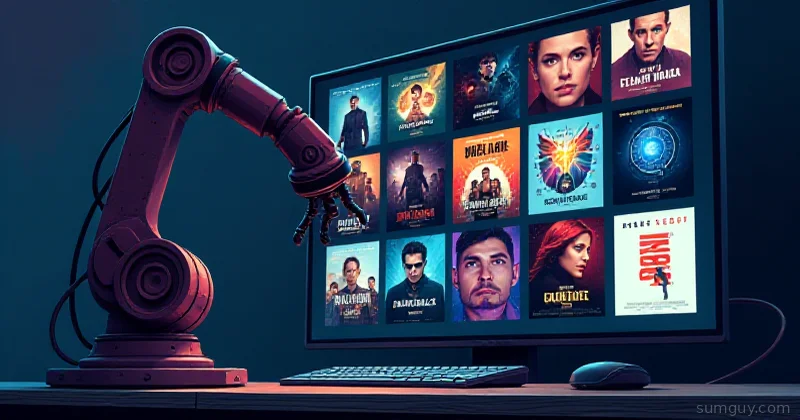
Kometa — formerly known as Plex Meta Manager, rebranded in August 2024 — is the missing automation layer. It connects to your Plex library (or Jellyfin, though we’ll get to that wrinkle), pulls lists from IMDb, Trakt, MDBList, Letterboxd, and a dozen other sources, then builds collections, applies poster art, and slaps quality badges on everything. Automatically. On a schedule. While you sleep.
It won’t fold your laundry, but honestly, it’s getting close.
What Kometa Actually Does
Let’s be specific, because “it automates your library” means nothing without examples.
Collections are the headline feature. Kometa can build and maintain:
- IMDb Top 250 — pulled fresh from IMDb, matched against your library
- Trakt trending/popular/watchlist — live lists, updated on your schedule
- MCU phases — “Marvel Phase 1”, “Marvel Phase 2”, etc.
- By decade — “Best of the 90s”, “2000s Action”
- Genre + rating combos — “Critically Acclaimed Horror” (IMDb >7.5, genre horror)
- Director/actor collections — everything Christopher Nolan, automatically
- MDBList curated lists — community-maintained lists for basically any niche
Posters and background art get replaced with consistent, high-quality assets. Kometa ships with a massive built-in asset library. For built-in collections like “Top Rated Movies” or franchise sets, it downloads and applies curated posters automatically.
Overlays are where the real magic is. Kometa can stamp visual badges directly onto your poster artwork:
- Resolution: 4K UHD, 1080p, 720p
- HDR format: HDR10, HDR10+, Dolby Vision, HLG
- Audio: Atmos, DTS-X, TrueHD
- Streaming source (if you’ve added content from services)
- Edition badges: Director’s Cut, Extended, Theatrical
The overlays are generated from your actual media file metadata — Kometa reads what Plex already knows about your files.
The Name Situation
Quick housekeeping: Plex Meta Manager (PMM) became Kometa in August 2024. Same project, same GitHub org (meisnate12), same config format. The Docker image changed from meisnate12/plex-meta-manager to kometateam/kometa. If you find a tutorial referencing PMM config syntax, it’s still valid — nothing broke, they just rebranded.
This guide uses Kometa throughout. When you’re Googling errors, search both names.
Getting It Running: Docker Compose
Kometa runs as a container. You don’t need to install Python or manage dependencies directly. Here’s a minimal Compose setup:
services: kometa: image: kometateam/kometa:latest container_name: kometa environment: - KOMETA_CONFIG=/config/config.yml - TZ=America/New_York volumes: - ./config:/config restart: unless-stoppedThat’s it for the container itself. The real work is in the config.
The Config File
Kometa’s config lives at ./config/config.yml. It has three main sections: Plex connection, library definitions, and playlist/collection metadata.
## Kometa config.yml — minimal working example
plex:  url: http://192.168.1.50:32400  token: YOUR_PLEX_TOKEN_HERE  timeout: 60  clean_bundles: false  empty_trash: false  optimize: false
tmdb:  apikey: YOUR_TMDB_API_KEY_HERE  language: en
tautulli:                        # optional but useful for "Recently Played" collections  url: http://192.168.1.50:8181  apikey: YOUR_TAUTULLI_KEY
trakt:                           # optional for Trakt-sourced lists  client_id: YOUR_TRAKT_CLIENT_ID  client_secret: YOUR_TRAKT_CLIENT_SECRET  authorization:    access_token: null    token_type: Bearer    expires_in: 7776000    refresh_token: null    token_note: Trakt requires OAuth — run kometa with --run to trigger the auth flow
libraries:  Movies:    metadata_path:      - file: /config/movies.yml    overlay_path:      - default: resolution      - default: audio_codec
Getting your Plex token: Open Plex web, navigate to any media item, click the three-dot menu, choose “Get Info”, then click “View XML”. Look for X-Plex-Token= in the URL. Copy that value.
TMDb API key: Free at developers.themoviedb.org. Takes about two minutes to register. Kometa uses it for metadata matching — it’s not optional.
A Real Movies Config
Here’s config/movies.yml with a few practical collections and overlay sets:
collections:
  IMDb Top 250:    imdb_list: https://www.imdb.com/list/ls068082370/    collection_order: custom    sync_mode: sync    summary: "IMDb's top 250 movies of all time, matched against your library."    sort_title: "!010_IMDb Top 250"
  Marvel Cinematic Universe:    trakt_list: https://trakt.tv/users/jawann2002/lists/marvel-cinematic-universe-movies    collection_order: release    sync_mode: sync    summary: "The full MCU in release order."    sort_title: "!020_MCU"
  Best of 2024:    imdb_search:      year: 2024      rating.gte: 7.0      votes.gte: 10000      sort_by: rating.desc      limit: 50    collection_order: custom    sync_mode: sync    summary: "Top-rated movies from 2024, by IMDb score."    sort_title: "!030_Best of 2024"
  Christopher Nolan:    tmdb_person: 525    collection_order: release    sync_mode: sync    summary: "Every Christopher Nolan film, in release order."    sort_title: "!040_Nolan, Christopher"
  Critically Acclaimed Horror:    imdb_search:      genre: horror      rating.gte: 7.5      votes.gte: 50000      sort_by: rating.desc    collection_order: custom    sync_mode: sync    summary: "Horror that critics actually liked. Both of them."    sort_title: "!050_Horror - Acclaimed"
The sort_title trick with !010_ prefixes forces Kometa collections to sort to the top of your library view, above your individual movies. Change the numbers to control ordering.
Overlays: The Part That Makes It Look Premium
Overlays go in the library’s overlay_path section of config.yml. The built-in overlay sets are ready to use:
libraries: Movies: overlay_path: - default: resolution # 4K, 1080p, 720p badge in corner - default: hdr # HDR10, HDR10+, DV badge - default: audio_codec # Atmos, TrueHD, DTS-X badgeThese read directly from Plex’s media analysis data. If Plex knows your file is Dolby Vision (it does, assuming it scanned the file), Kometa stamps the badge. No manual work.
You can customize badge position, size, and style:
libraries: Movies: overlay_path: - default: resolution template_variables: horizontal_align: right vertical_align: bottom horizontal_offset: 15 vertical_offset: 15 - default: hdr template_variables: horizontal_align: left vertical_align: bottomLocal Poster Assets
For collections where you want your own poster art instead of the defaults, use an asset directory:
libraries: Movies: asset_directory: - /config/assets/Movies metadata_path: - file: /config/movies.ymlThen drop your poster at:
/config/assets/Movies/ Christopher Nolan/ poster.jpg Marvel Cinematic Universe/ poster.jpg background.jpgKometa matches folder name to collection name and uploads automatically. The background.jpg becomes the collection’s background art in Plex.
For individual movies, the path is:
/config/assets/Movies/ The Dark Knight (2008)/ poster.jpgIt’s picky about the exact folder name — it needs to match Plex’s title + year format.
Scheduling: Sundays Only, Please
A full library run against a large collection can take hours and hammers TMDb/Trakt rate limits. Run it once a week, not every hour.
Add a schedule to Compose:
services: kometa: image: kometateam/kometa:latest container_name: kometa environment: - KOMETA_CONFIG=/config/config.yml - TZ=America/New_York - KOMETA_TIMES=sun06:00 # run every Sunday at 6am volumes: - ./config:/config restart: unless-stoppedIf you want to trigger a manual run immediately (first-time setup, testing changes):
docker exec -it kometa kometa --runFor overlays-only pass (faster, skips collection rebuilding):
docker exec -it kometa kometa --run --overlays-onlyCommon Gotchas
TMDb rate limits — TMDb’s free API tier gets throttled if you hammer it. On first run with a large library, expect it to self-throttle and take 2-4 hours. This is normal. Don’t kill the container.
Plex token expiry — Plex tokens don’t expire under normal conditions, but if you regenerate them (password change, new session), update config.yml and restart the container.
Asset directory mismatches — The folder name must exactly match what Plex shows as the collection or movie title, including year in parentheses for movies. Special characters matter. If a poster isn’t applying, check for name mismatches with --debug mode:
docker exec -it kometa kometa --run --debugTrakt OAuth — Trakt requires an OAuth flow the first time. Run kometa --run interactively (not detached) to complete the browser auth flow. It saves a token that refreshes automatically after that.
Collection “not found” — If Kometa builds a collection but you can’t see it in Plex, check that the collection isn’t hidden. Plex sometimes hides auto-generated collections in preferences. Go to your library settings → Advanced and make sure collections are visible.
Jellyfin: Honest Talk
If you’re running Jellyfin instead of Plex, Kometa is not your tool — it’s Plex-centric by design. The ecosystem for Jellyfin is fragmented but improving:
- Jellyfin Collections Plugin — basic, built into Jellyfin, manual or semi-auto
- JMM (JellyfinMediaManager) — handles AniDB/AniList metadata for anime; more limited for western content
- Maintainerr — cleanup tool that can tag and group content, but it’s not a poster/overlay tool
- Jellyseerr — request management, not collection management
For overlay-style badges on Jellyfin, there’s no equivalent to Kometa’s overlay system. You’re either modifying poster files yourself or waiting for the ecosystem to catch up. If visual polish matters to you and you’re choosing between Plex and Jellyfin for a home library, this is a real practical difference.
The Bottom Line
Kometa is the thing you didn’t know your Plex setup was missing. It’s configuration over clicking, which means there’s a learning curve — but once your config.yml and collection YAMLs are dialed in, you never think about it again. Collections update themselves. Overlays stay current as you add media. Your library looks like something a real person curated instead of a directory listing with thumbnails.
The setup takes an afternoon. The payoff is a Plex interface that actually impresses the family members who grudgingly installed the app on their TV because you kept bugging them.
Your 2 AM self, staring at the library on the couch, will appreciate the IMDb Top 250 collection knowing exactly what to queue next.
Quick reference:
- Docs: kometa.wiki
- GitHub: github.com/meisnate12/Kometa
- Community configs/overlays: github.com/meisnate12/Kometa-Configs