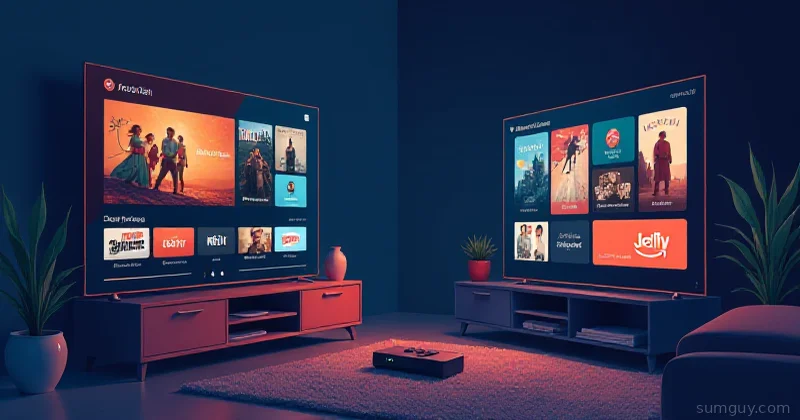
Here’s the thing: people see “Jellyfin” and think it’s one monolithic app. It’s not. Jellyfin is the server that organizes your library, scrapes metadata, and handles playback for other apps. Jellyfin also ships native client apps — but they’re completely separate from the server.
On your living room HTPC, you’ve got two real choices: run Kodi (with or without the Jellyfin add-on), or run one of Jellyfin’s native client apps (Apple TV, Android TV, Web, etc.). They’re not competitors — they’re different philosophies. And picking wrong means your 2 AM self will be digging through settings instead of watching The Office for the 47th time.
Let’s cut through the confusion.
What You’re Actually Choosing
Kodi is a standalone media center. It’s been around since 2003 (as XBMC). It runs on Linux, Windows, Mac, Android, iOS, and embedded systems. It has its own playback engine, its own UI framework, and its own plugin ecosystem.
Jellyfin’s native clients are just that — client apps that talk to a Jellyfin server. They’re not full media centers. They’re pretty front-ends to a library you’ve already scraped server-side.
The confusion comes from the Jellyfin add-on for Kodi. You can run Kodi on your HTPC and point it at Jellyfin server for your library. That’s valid. But that’s a third option — different from running Kodi standalone, and different from running Jellyfin native.
So: three paths forward.
HTPC Hardware Reality
Before we dig into software, what are you actually running this on?
Raspberry Pi 5: Kodi runs fine. Jellyfin client — also fine. Both are light enough.
NVIDIA Shield TV: The Android TV version. Both Kodi and Jellyfin’s Android TV client work here, though Kodi via sideload or from LineageOS is the classic setup.
Apple TV (4K / HD): tvOS only. Your only choice is Jellyfin’s native Apple TV client or (if you jailbreak, which we don’t recommend) nothing. Kodi doesn’t run on tvOS.
Mini PC / Intel NUC: Linux or Windows. Kodi, Jellyfin native (if you use Linux + browser), or both via dual-boot. Full freedom.
Old Android phone / Chromecast with Google TV: Android TV variants. Jellyfin native or Kodi via sideload.
The hardware you own often dictates the software you can run. If you’re on Apple TV, Jellyfin native is your only real choice. If you’re on a Pi or Shield, you’ve got real options.
Kodi: The Swiss Army Knife
Kodi is what you get when you let engineers tinker for two decades. It does everything, customizes everything, and requires you to understand everything.
Install & Setup
On Linux (Pi, mini PC, or Docker):
# Ubuntu / Debiansudo apt update && sudo apt install -y kodi
# Or Raspberry Pi: use LibreELEC or CoreELEC (purpose-built Kodi distros)# Write image to SD card and boot# LibreELEC: https://libreelec.tv# CoreELEC: https://coreelec.org (better codec support, more tweaks)
Or run it containerized (though GPU passthrough is annoying, and “headless” means JSON-RPC control only — no on-TV video output):
services: kodi: # linuxserver/kodi-headless was archived back in 2022 — use the # maintained matthuisman fork instead. image: matthuisman/kodi-headless:latest container_name: kodi environment: - PUID=1000 - PGID=1000 - TZ=America/Chicago volumes: - /path/to/config:/config - /path/to/media:/media ports: - "8080:8080" - "6556:6556" restart: unless-stopped # GPU passthrough requires additional configLibrary Scraping (Local)
Kodi scrapes your library on the box running Kodi. You add a source, Kodi walks the directory tree, and pings TMDB / TVDB / etc. for metadata.
This is both a feature and a gotcha.
Gotcha: If you add a new movie to your NAS and want it to show up on your Apple TV and Kodi and a browser, Kodi rescans independently from the server. Your library is fractured — different sources have different metadata, missing posters, whatever.
Feature: Kodi can scrape without a server. Completely offline, fully local. If your internet dies, Kodi still works.
To add a source in Kodi:
Settings → Media → Library → Videos → Add VideosAdd network share (NFS, SMB)Let Kodi scrape → choose scraper (TheMovieDB)DoneThe UI is dense, but it works.
Playback Engine
Kodi has its own video pipeline. It handles HEVC, H.264, AV1, VP9. HDR and Dolby Vision passthrough work on supported hardware (Shield, some Pi configs). Subtitles support PGS, ASS, SRT, VobSub, SSA — basically everything.
Playback is direct if the codec is supported locally. If it’s not (say, an obscure format on a Pi), Kodi can transcode on the fly via FFmpeg. That’s useful, but CPU-intensive on weak hardware.
The codec support is granular. You can inspect what Kodi can do:
# SSH into your Kodi boxcat ~/.kodi/userdata/advancedsettings.xmlCustomization: Skins & UI
This is where Kodi shines. Dozens of skins. Estuary (default), Aeon Nox (gorgeous, heavy), Confluence (old-school). Each one is highly customizable. Fonts, colors, layouts, widget layouts.
You can build a bespoke living room experience. Want your library sorted by genre? Custom banners? Movie posters from a third-party API? Kodi can do it.
Jellyfin native? You get what you get.
Remote & CEC Control
Kodi plays nicely with HDMI-CEC. Your TV remote can control Kodi without extra setup. It also works with Bluetooth remotes, USB keyboards, and the official Kodi remote app (iOS / Android).
The remote experience is polished. Button mapping is configurable.
Jellyfin Native Client: “It Just Works” (Mostly)
Jellyfin native is the opposite philosophy. Your server does the work. Your client just displays what the server tells it.
Setup Per Platform
Android TV (Shield, Chromecast, etc.):
# On Shield, install via Play Store, or sideload via ADBadb connect <shield-ip>adb install Jellyfin.apk# Launch, add Jellyfin server address, log inApple TV 4K / HD:
App Store → search Jellyfin → install → add server → done. Trivial.
Web (browser on any HTPC):
# Navigate to https://your-jellyfin-server:8096# Works on Firefox, Chrome, Safari. Full playback support.FireOS (Amazon Fire TV):
Amazon Appstore → Jellyfin → install.
Setup is fast. You’re not configuring scrapers, codecs, or skins. You’re pointing at a server and signing in.
Library Scraping (Server-Side)
Jellyfin scrapes once on the server. Every client sees the same metadata. Your library is unified.
Add a movie to your NAS → Jellyfin server rescans → all clients see it instantly with full metadata. No fractured state.
The server handles TVDB, TMDB, OpenLibrary. It’s less customizable than Kodi’s scraper ecosystem, but it’s consistent.
Playback Engine
Jellyfin native clients use the platform’s native playback engine.
- Android TV: ExoPlayer (Google’s video player). Handles most formats. Transparent codec support.
- Apple TV: AVPlayer (native iOS/tvOS framework). Excellent HDR/Dolby Vision support. Extremely efficient.
- Web: Your browser’s video engine. HEVC support varies (Safari has it; Chrome and Edge handle it too, but only when the machine has a hardware HEVC decoder — no software fallback). Transcoding happens server-side if needed.
This is actually good. Native players are battle-tested and optimized for the platform.
Transcoding
Jellyfin server can transcode in real time for clients that can’t play a format. No client-side CPU burn.
If you’re watching a 10-bit HEVC on an Android TV that doesn’t support it, the server re-encodes on the fly. Latency is minimal on modern hardware. On a weak server (Pi 4, old NAS), be careful — transcoding is CPU-heavy.
You can disable transcoding per client to force direct play. Or cap bitrate. Or transcode to H.264 for everything.
Subtitle Support
Jellyfin native handles SRT, VobSub, PGS, ASS. Subtitles are downloaded server-side and handed to the player.
The UX is clean. Select a subtitle stream, it plays. No fussing.
Remote & CEC
Android TV clients respond to the physical remote. Apple TV client responds to Siri Remote. Web client responds to keyboard / gamepad.
HDMI-CEC works on Android TV natively. Apple TV has Siri remote control, which is different but works.
Less customizable than Kodi, but it works.
The Combo: Jellyfin Server + Kodi Client
Here’s the power move: run a Jellyfin server somewhere (NAS, mini PC, Pi), and install the Jellyfin add-on for Kodi on your HTPC.
# 1. Grab the Jellyfin Kodi repo zip:# https://repo.jellyfin.org/files/client/kodi/repository.jellyfin.kodi.zip# 2. Kodi → Add-ons → Install from zip file → pick the repo zip# 3. Add-ons → Install from repository → Jellyfin → Video add-ons → Jellyfin# (Two flavors: "Jellyfin" = full library sync into Kodi's DB,# "JellyCon" = lightweight, talks to the server live. Pick one.)Now you get:
- Server-side scraping (unified library)
- Kodi’s customization (skins, widgets, layouts)
- Jellyfin’s multi-client support (other devices point at the same server)
This is the best setup for power users who have a dedicated Jellyfin server and multiple HTPC boxes.
The trade-off: you’re running two pieces of software now. More moving parts. More potential failure modes.
For a single-HTPC household, it’s overkill.
Decision Matrix
| Feature | Kodi Standalone | Jellyfin Native | Jellyfin + Kodi Add-on |
|---|---|---|---|
| Setup Time | 30–60 min | 5 min | 15 min |
| Library Scraping | Local (per Kodi box) | Server-side (unified) | Server-side (unified) |
| Customization | Extreme | Minimal | Extreme |
| Multi-Device Support | Plugin-based, clunky | Native, seamless | Seamless (via server) |
| Codec Support | Best on dedicated HW | Platform-dependent | Best |
| Transcoding | Client-side | Server-side | Server-side (via plugin) |
| Remote Control | Excellent, CEC-native | Good (platform default) | Excellent |
| Subtitle Support | Best (all formats) | Good | Best |
| Offline Mode | Works fully | Offline mode exists | Works fully |
| CPU Usage (idle) | Moderate | Minimal | Moderate |
| Learning Curve | Steep | Flat | Moderate |
Real-World Scenarios
Scenario 1: Living Room Pi 5 + NAS Jellyfin Server
Install Kodi on the Pi. Jellyfin server on the NAS. Point Kodi at Jellyfin via add-on.
You get: unified library from NAS, Kodi’s gorgeous UI, all your other devices (phone, tablet, Apple TV) point at the same NAS server.
Setup: 20 min. Maintenance: low. Happiness: high.
Scenario 2: Apple TV 4K Living Room + Backup Jellyfin Server
Apple TV only runs tvOS. Install Jellyfin native client. Point at your server.
Setup: 3 min. UI is minimal but clean. Playback is buttery smooth.
If you want fancier UI, you’re stuck. Apple TV doesn’t run Kodi.
Scenario 3: NVIDIA Shield + Local NAS
Shield runs Android TV. Install Jellyfin native and Kodi.
Use Jellyfin native for everyday watching (simple, fast). Use Kodi for manual library editing, tweaking scrapers, or when you want to tinker.
Or just pick one. Jellyfin native for simplicity, Kodi for power.
Scenario 4: Headless Server + Multiple Living Room Boxes
Run Jellyfin server on a headless NAS / Pi / mini PC.
Install Jellyfin native on your Apple TV, Android TV, and Fire Stick. Install Kodi + Jellyfin add-on on your Shield.
Everything talks back to the single server. Library is unified. Each device picks its own client based on what it can run.
This is the “correct” architecture for a multi-room household.
The 2 AM Test
It’s midnight. You want to watch a movie. Which setup lets you do that without reading forums?
Jellyfin native: Launch app, tap movie, play. Done. 30 seconds.
Kodi standalone: App boots, library loads, tap movie, play. Or it doesn’t because a scraper is hung. 5 minutes, maybe more.
Jellyfin + Kodi add-on: Same as Kodi, but with server-side fallback if something breaks on the box.
If your household is non-technical, Jellyfin native is the answer.
If you’re a tinkerer and want to own your setup, Kodi (especially with Jellyfin server backing it) is the move.
The Real Question
Before you pick, ask yourself:
-
How many devices are you running? Just one HTPC, or multiple (TV + bedroom + living room)?
- One device → Kodi standalone or Jellyfin native, your choice.
- Multiple devices → Jellyfin server + clients (Kodi add-on on the main box, native elsewhere).
-
Do you want customization, or do you want it to work?
- Customization → Kodi.
- Works out of the box → Jellyfin native.
-
What hardware are you on?
- Apple TV only → Jellyfin native (forced).
- Linux / Pi / Shield → full freedom. Pick your poison.
-
How strong is your server?
- Weak (Pi 4 NAS) → avoid transcoding. Use direct-play clients like Kodi, or limit bitrate in Jellyfin.
- Strong (mini PC, Proxmox) → transcode all day, use Jellyfin native everywhere.
Kodi is the old reliable pickup truck. It’ll haul anything, but you’ll get grease on your hands tuning it.
Jellyfin native is the comfortable sedan. You get in, it goes, you don’t think about it.
And if you want both? Jellyfin server + Kodi client is the pickup truck with cruise control and leather seats.
Pick the one that matches your pain tolerance and your hardware. Your 2 AM self will thank you.